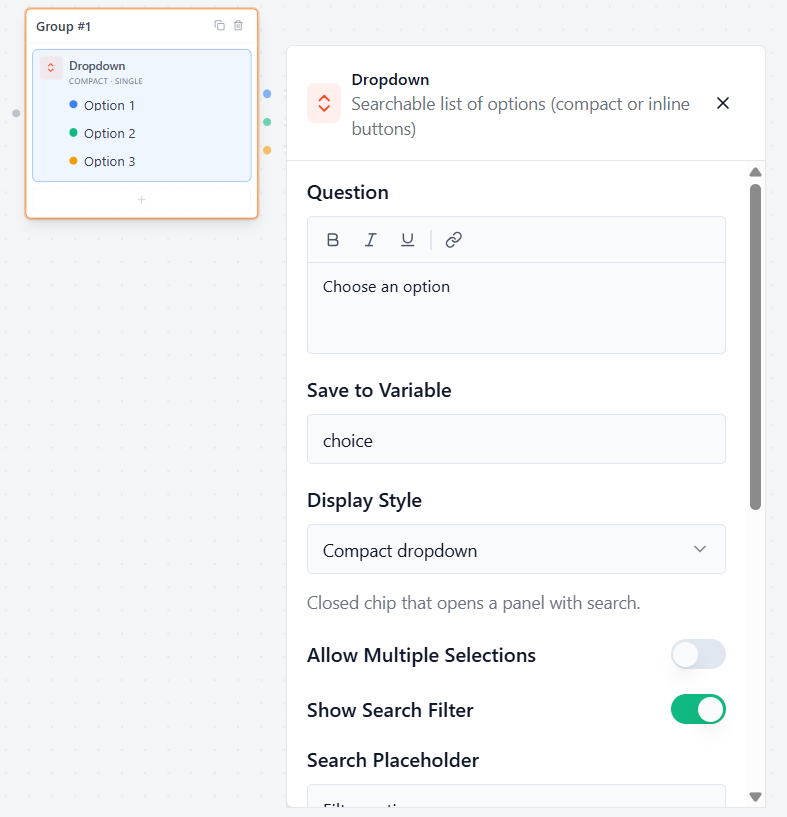

Buttons Block
The Buttons block allows you to display quick, clickable options directly inside the chat window. Users can tap their answer instantly instead of typing.
Question
Type the message or question that will appear right above your choices.
- Example: “Choose the preferred method”
Save to Variable
Select or create a custom variable to save the specific button choice the user clicks on.
- How to use it later: You can display the selected answer in any later chat bubble by typing your variable name, like {{choice}}.
Randomize Order
Toggle this switch to mix up the order of the buttons for every new user. This is great for keeping quizzes or surveys neutral and unbiased.
Managing Options
Options List
Type your custom text into the fields to name each choice (e.g., “Option 1”, “Option 2”).
Add Option: Click this button to create a new choice button in the list.
Smart Routing: On the canvas canvas grid, each option will generate its own connector handle so you can easily wire different buttons to completely different groups!
Image (Optional)
Click Choose Image next to any option to add a picture directly onto that button from your WordPress Media Library. This instantly converts your standard text buttons into a beautiful, visual choice grid.
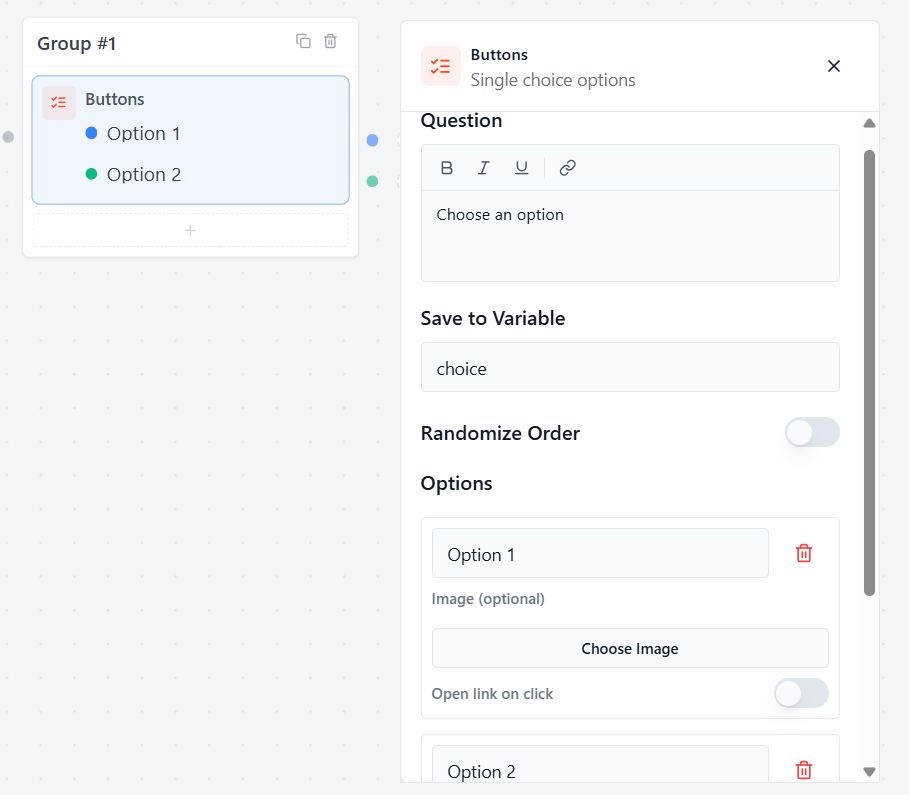
Multiple Choice
The Multiple Choice block allows you to display a list of options with checkboxes, letting users select one or more answers at the same time.
Question
Type the message or instruction that will appear above the checkboxes.
- Example: “Select all that apply”
Save to Variable
Select or create a custom variable to save the answers chosen by the user. If they pick multiple choices, they will all be saved inside this single variable.
Randomize Order
Toggle this switch to mix up the visual order of the choices for your live users.
- Note: The choices stay in a fixed order inside your backend builder canvas so you can edit easily. Shuffling only happens in the live preview or on your live website.
Allow “Other” Option
Toggle this switch to automatically add an “Other” checkbox at the bottom of the list. When a user ticks it, a small text box opens up so they can type in a custom answer that isn’t on your list.
Selection Limits
Min Selections
Type the minimum number of choices a user must select before they are allowed to submit the form.
Max Selections
Type the maximum number of choices a user is allowed to tick.
- Tip: Set this to 0 if you want it to be unlimited, allowing users to select as many boxes as they want.
Managing Options
Options List
Type your custom text into the fields to create your checkboxes. Click Add Option to add more choices to your list.
Image (Optional)
Click Choose Image next to any option to add a picture or icon alongside the checkbox. This turns a basic text list into a beautiful, visual choice grid.
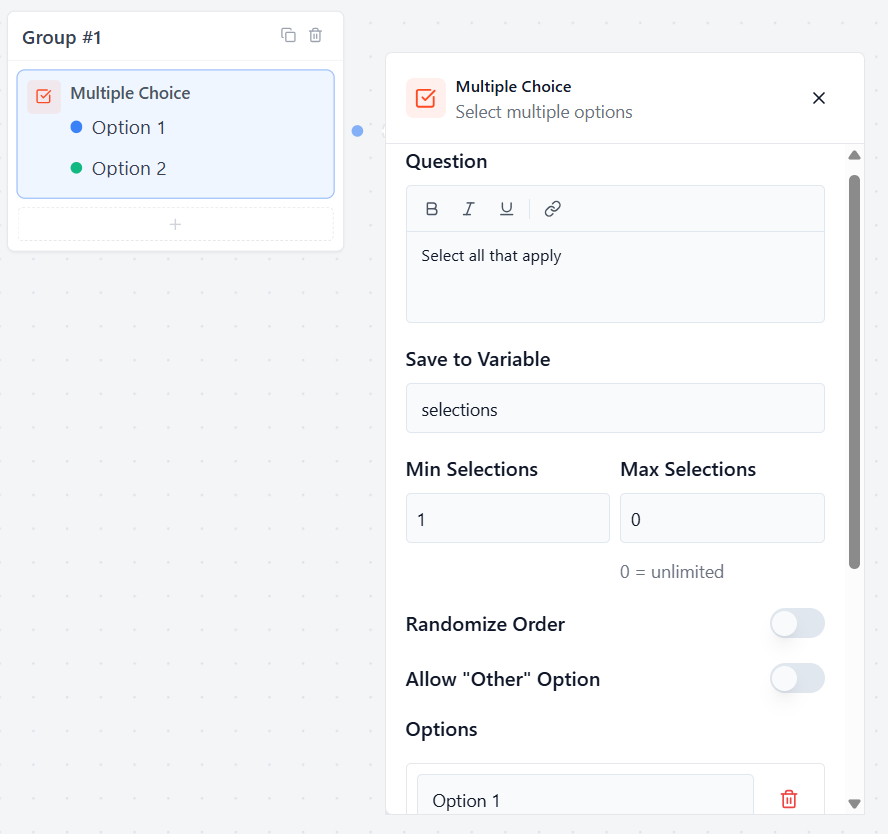
Dropdown Block
The Dropdown block lets users select one or more options from a searchable list. It is ideal when you have many choices and want to keep your form clean and compact.
Question
In the question box, enter the question or prompt you want to display above the dropdown.
Example:
“Choose an option”
Save to Variable: Create a variable where the user’s selection will be stored.
Example: choice
You can use this variable later in your flow with: {{choice}}
Display Style
Choose how the dropdown appears to users.
Inline Options:
This option display style shows choices directly inside the chat as clickable buttons. Users can see all available options immediately without opening a dropdown menu.
Example:
🟦 Option 1 🟦 Option 2 🟦 Option 3
Compact Dropdown
The Compact Dropdown display style shows a single dropdown field in the chat. When users click it, a panel opens displaying all available options and an optional search box.
Allow Multiple Selections
Enable this option if users should be able to select more than one choice.
Enabled: Users can select multiple options.
Disabled: Users can select only one option.
Show Search Filter
Displays a search box inside the dropdown to help users quickly find options. Useful when you have a long list of choices.
Search Placeholder
Enter the text displayed inside the search box before the user starts typing.
Example:
Filter options…
Randomize Order
Enable this option to display the choices in a random order each time the form is opened.
Useful for surveys, quizzes, and unbiased feedback forms.
Allow “Other” Option
Adds an Other choice that allows users to enter a custom answer not included in the predefined options.
Options
Add the choices users can select from. Click Add Option to create additional choices.