

The Telegram integration allows Formgic to send notifications to a Telegram chat or group whenever a form is submitted or a flow reaches a Telegram action block.
Before using the Telegram block in your flows, configure a global Telegram bot in Formgic → Integrations.
How to Get a Bot Token
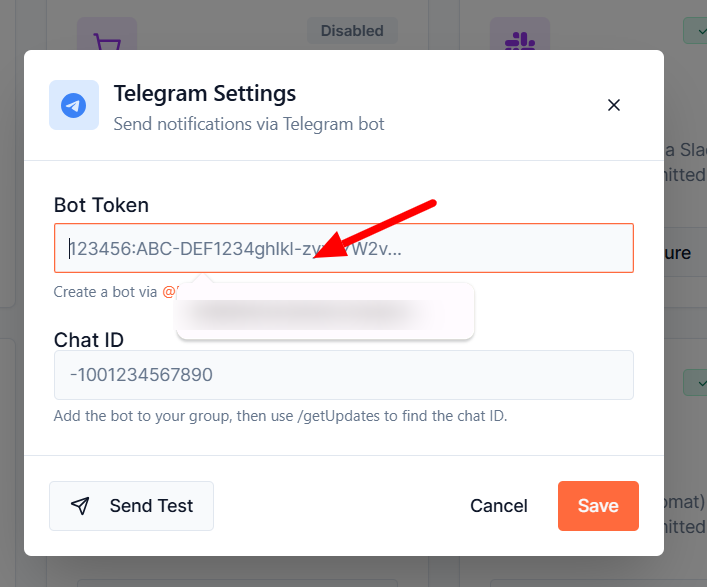
To connect Formgic with Telegram, you first need to create a Telegram bot and obtain its Bot Token.
Follow these steps:
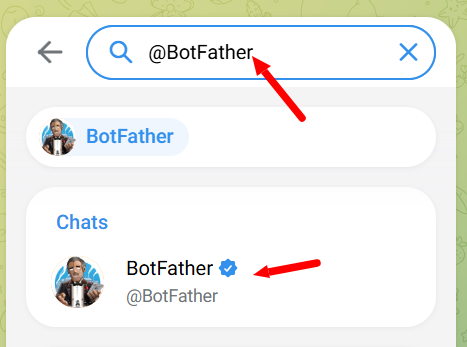
- Open the Telegram app and search for @BotFather.
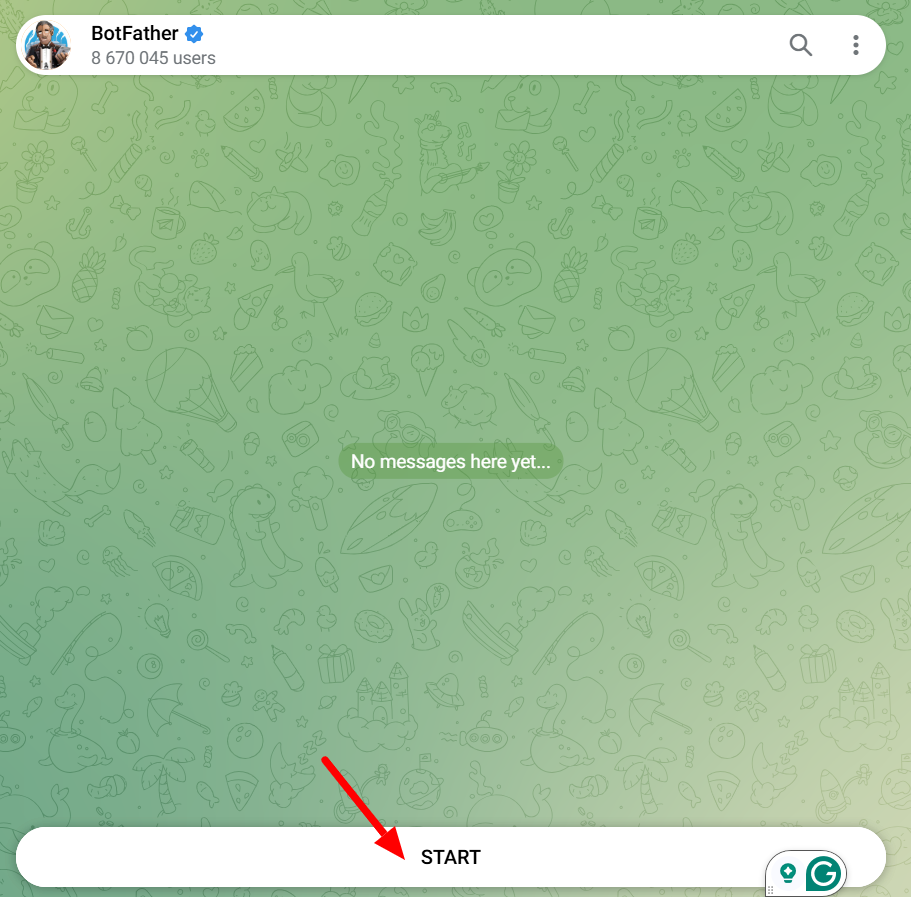
- Start a chat with @BotFather and click Start.
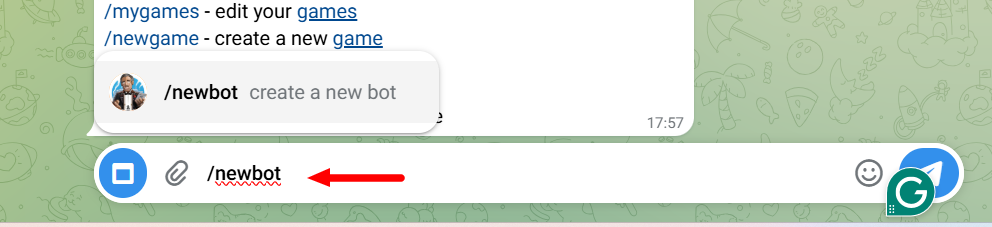
- Send the command: /newbot
- Enter a name for your bot when prompted.
- Choose a unique username for your bot. The username must end with bot (for example, FormgicBot).

- Once the bot is created, @BotFather will provide a Bot Token.
Note: Keep your Bot Token secure. Anyone with access to it can control your bot and send messages on its behalf.
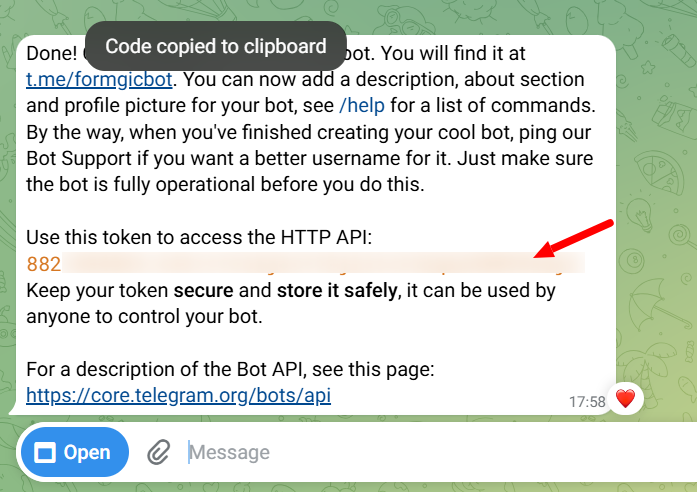
7. Copy the Bot Token and paste it into the Bot Token field in the Formgic Telegram integration.
How to Get the Chat ID
After creating your Telegram bot, you need the Chat ID where Formgic will send notifications. You will get the chat link in the Botfather conversation click to access your personal chat.
For a Personal Chat
- Open Telegram and start a conversation with your bot.
- Send any message (for example, Hi).
- Open the following URL in your browser, replacing <YOUR_BOT_TOKEN> with your bot’s token:
- Look for the following section in the response:
“chat”: {
“id”: 123456789,
“type”: “private”
}
- Copy the value of id

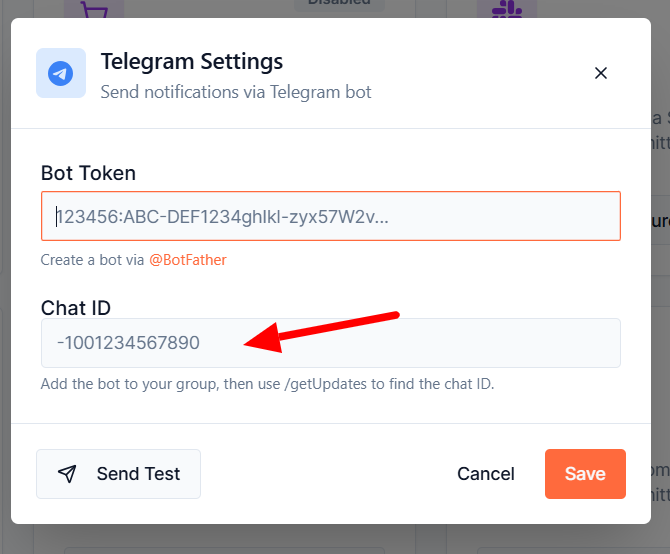
- Paste it into the Chat ID field in Formgic and click the Save button.
Send Test
Click Send Test to verify that the webhook is configured correctly and notifications can be delivered to your Telegram channel.
Using the Telegram Block
After configuring the global Telegram integration, add a Telegram block to your flow to send notifications to a Telegram chat or group.
Configuration Fields
Bot Token (Optional)
Enter a different Bot Token to override the global Telegram configuration for this block only. When left empty, the Telegram block uses the globally configured Bot Token. Use this option if you want this block to send notifications using a different Telegram bot.
Chat ID (Optional)
Enter a different Chat ID to override the global Telegram configuration for this block only. When left empty, the Telegram block uses the globally configured Chat ID. Use this option if you want notifications from this block to be sent to a different Telegram chat or group.
Message
Enter the message to send to Telegram. You can include variables collected during the conversation using the following format: {{variableName}}
Example:
New submission from {{name}} ({{email}})
Parse Mode
Select how Telegram should format your message.
Available options include:
- HTML – Formats the message using HTML tags (such as <b>, <i>, and <a>).
- Markdown (if supported) – Formats the message using Markdown syntax.
Send Silently
Enable this option to send the Telegram message without triggering a notification sound for recipients. This is useful when sending frequent updates that do not require immediate attention.