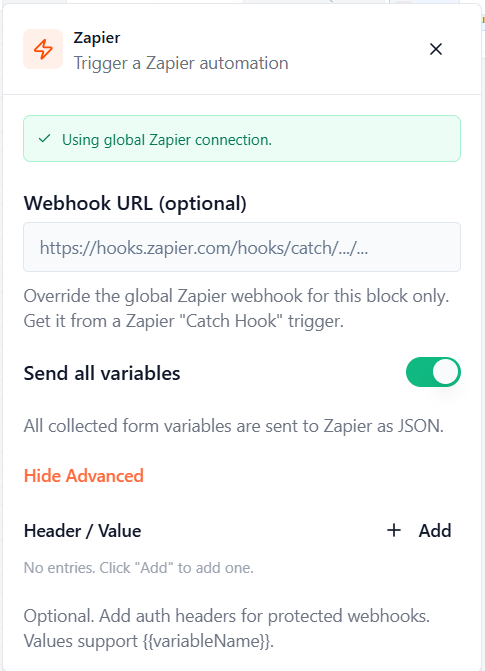

Zapier allows Formgic to connect with thousands of popular apps. When someone submits a form, Formgic can automatically send the form data to Zapier, which can then perform actions like sending emails, updating Google Sheets, creating CRM contacts, sending Slack notifications, and much more.
How to Get a Zapier Webhook URL
Step 1: Create a New Zap
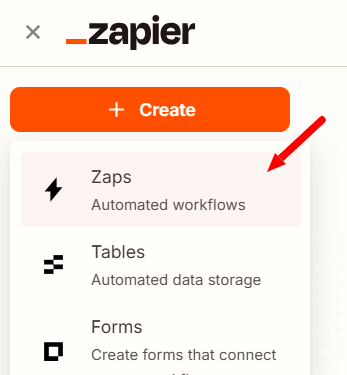
- Log in to your Zapier account.
- Click Create and select Zap.
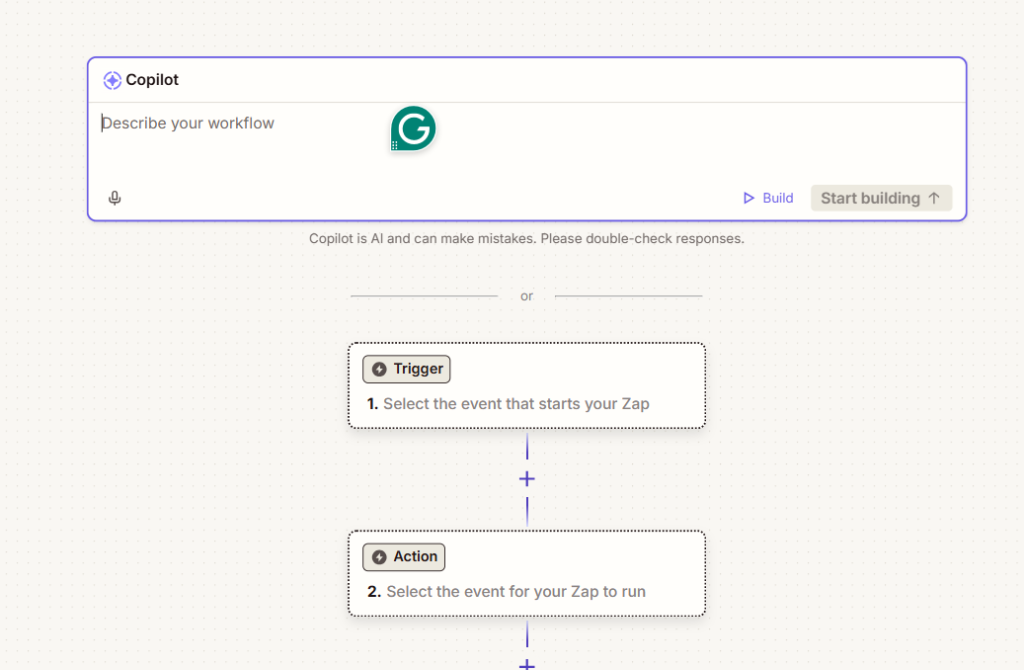
Step 2: Configure the Trigger
- In the Trigger section, search for and select Webhooks by Zapier.
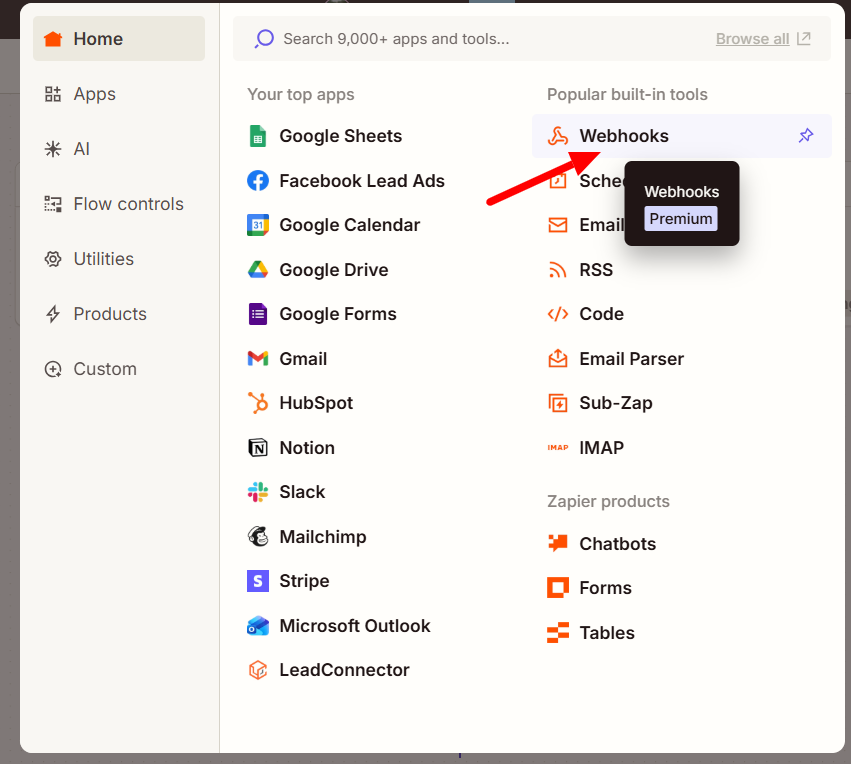
- Choose Catch Hook as the trigger event.
- Click Continue.
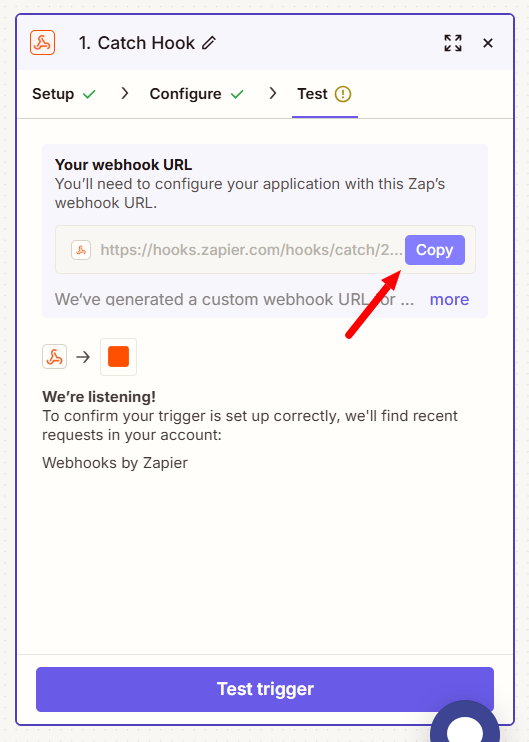
- Zapier will generate a unique Webhook URL.
- Click Copy to copy the Webhook URL.
6. Paste the Webhook URL in the Formgic and click Save button.
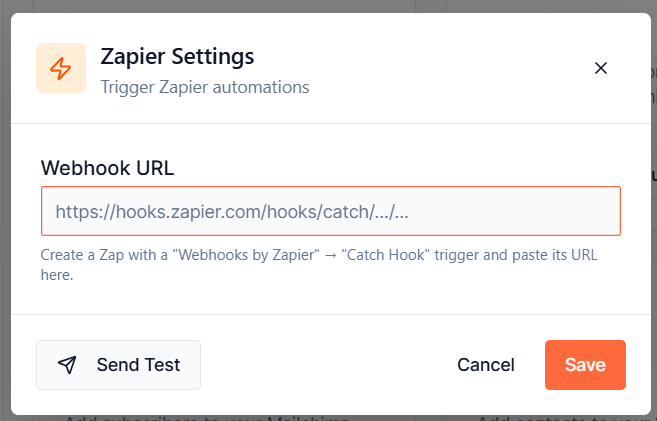
Send Test
Click Send Test to verify that the webhook is configured correctly and that the test data is successfully received by your Zap.
Using the Zapier Block
The Zapier Block sends form submission data to your Zapier webhook when a user reaches this block in the form flow.
If you have already configured a Global Zapier Connection, Formgic will use it automatically. You can also specify a different webhook URL for this block if you want to send the data to another Zap.
Webhook URL (Optional)
By default, the Zapier block uses the Global Zapier Connection configured in Integrations → Zapier.
If you want this block to send data to a different Zap, enter a Webhook URL in this field. This will override the global webhook for this block only.
Note: Leave this field empty to use the global Zapier webhook.
Send All Variables – Enable this option to send all collected form variables to Zapier as a JSON payload. When disabled, only the variables you configure will be sent.
Header / Value – Use this section to add custom HTTP headers to the webhook request. Headers are typically used when the destination webhook requires authentication or additional information before accepting the request.
Note: This option is optional. Most Zapier Catch Hook webhooks do not require authentication headers. Only add headers if your webhook or workflow specifically requires them.