

The Entries section in Formgic is where all your form submissions are stored. Instead of checking each form separately, you can manage and review all responses from one central dashboard. Here, you can track conversion performance, search for specific responses, filter entries, and export your data easily.
Searching & Advanced Filtering
Search entries… Type in specific user answers, names, or keywords to isolate a single submission instantly.
All Flows: Filter the entire table to look at entries from just one specific chatbot flow, or view them all at once.
All Status: Filter your view by user progress to see only finished submissions or partial drop-offs.
Read / Unread Dropdown: Filter responses based on your review status so you can quickly catch up on new, unread leads.
Date Range: Focus on submissions from a specific timeframe, like today, this week, or a custom date range.
Export CSV: Click this button at the top right to instantly download your filtered table data into a spreadsheet for external reporting or CRM migration.
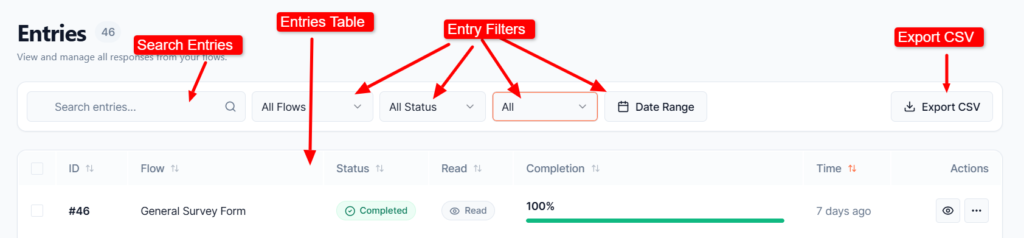
Overview of the Entries page
Understanding the Entries Table
The responses table breaks down your data using clear, sortable columns to give you complete context for every submission:
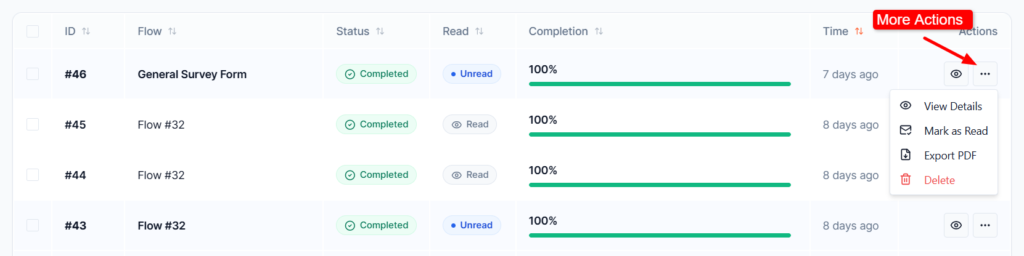
- ID: A unique tracking number assigned to every response (e.g., #46). Click the arrow icon to sort entries by newest or oldest.
- Flow: Indicates exactly which Form the user interacted with (such as General Survey Form).
- Status: A live color-coded badge showing the completion state of the form (e.g., a green Completed badge).
- Read State: A helpful tracking badge to keep your workflow organized:
- Read (Gray badge) means you have already opened and reviewed this entry.
- Unread (Blue badge) highlights brand-new submissions that need your attention.
- Completion: A visual green progress bar and percentage tracker (e.g., 100%) showing exactly how far the user made it through your flow before submitting.
- Time: Shows how long ago the entry came in (for example, 7 days ago), making it simple to track recent activity at a glance.
- Actions: Use the action buttons at the end of each entry row to manage and review submissions.
Overview of the entries table and submission details
👁️ View Entry
Click the eye icon to open the full submission and view all answers provided by the user.
- ⋯ More Actions
Click the three dots to open additional options:- View Details – View complete entry information, including submission details and timestamps.
- Mark as Read / Unread – Change the entry’s read status to help you keep track of submissions.
- Export PDF – Download the selected entry as a PDF file.
- Delete – Permanently remove the entry from your website database.
This section gives you quick access to all the tools needed to review and manage your form submissions
Performance Metrics
At the top of the Entries page, you can quickly view important performance statistics for your conversational forms.
- Total Responses → The total number of submissions started by users.
- Completion Rate → The percentage of users who completed the entire flow.
- Completed → The total number of fully completed submissions.
- Today → Shows how many new responses were received today.
These metrics help you quickly understand how your forms are performing.
Search & Filters
Below the statistics section, you can search and filter your entries easily.
- Search Responses → Search submissions using keywords, form names, or response values.
- All Flows → Filter entries from a specific conversational flow.
- Date Range → View submissions from a selected date or time period.
- Export CSV → Download your entries as a CSV spreadsheet file for reporting or analysis.
Responses Table
The Responses Table displays all collected submissions with important details.
- ID → Unique ID number for each response.
- Status → Shows whether the submission is Complete or Partial.
- Complete → User finished the entire flow.
- Partial → User left before completing the conversation.
- Flow Name → Shows which form or chatbot collected the response.
- Response Summary → Quick preview of the submitted answers.
- Date → Displays the submission date and time.
- Actions → Additional options to view, export, or delete the entry.