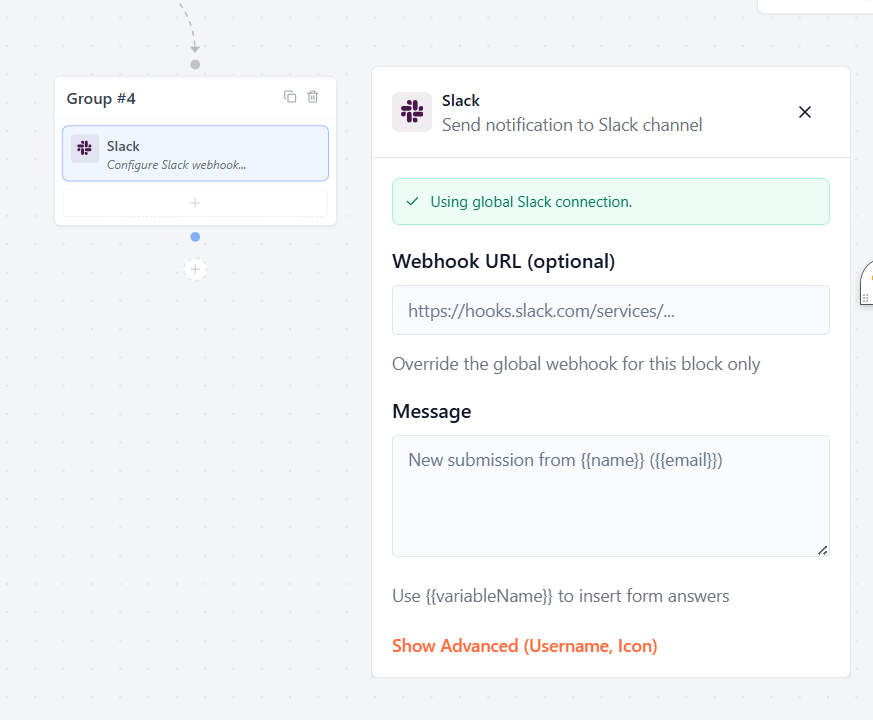

The Slack integration allows Formgic to send notifications to a Slack channel whenever a form is submitted or a flow reaches a Slack action block.
Before using the Slack block in your flows, configure a global Slack webhook in Formgic → Integrations.
How to Get a Slack Webhook URL
To connect Formgic with Slack, you need an Incoming Webhook URL from your Slack workspace.
Follow these steps:
- Sign in to your Slack workspace.
- Go to the Slack API Apps page:
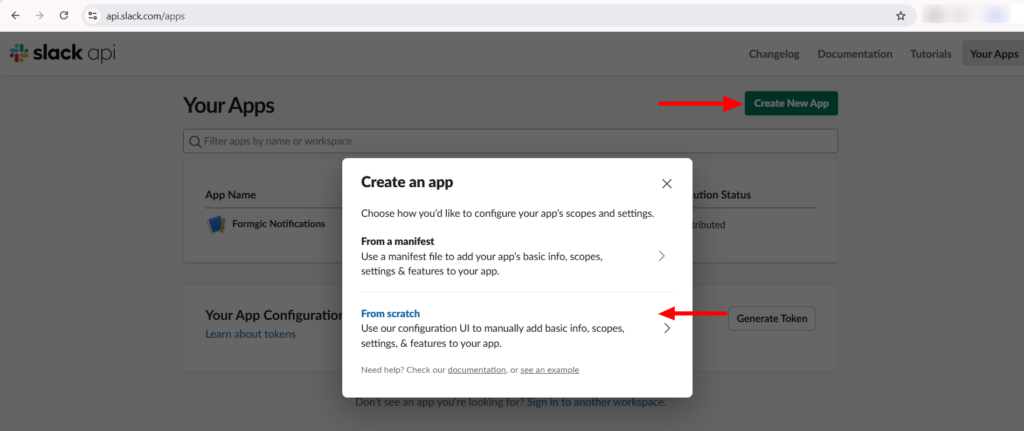
https://api.slack.com/apps - Click Create New App and choose From scratch.
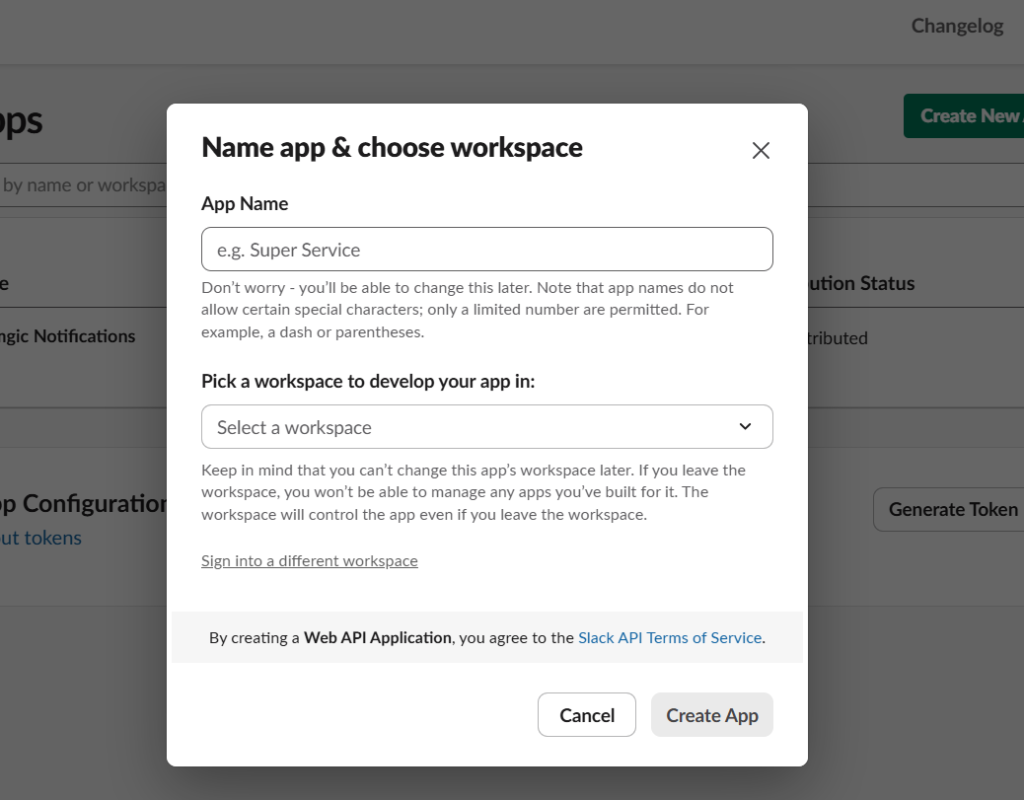
- Enter an app name and select your Slack workspace.
- In the left sidebar, navigate to Features → Incoming Webhooks.
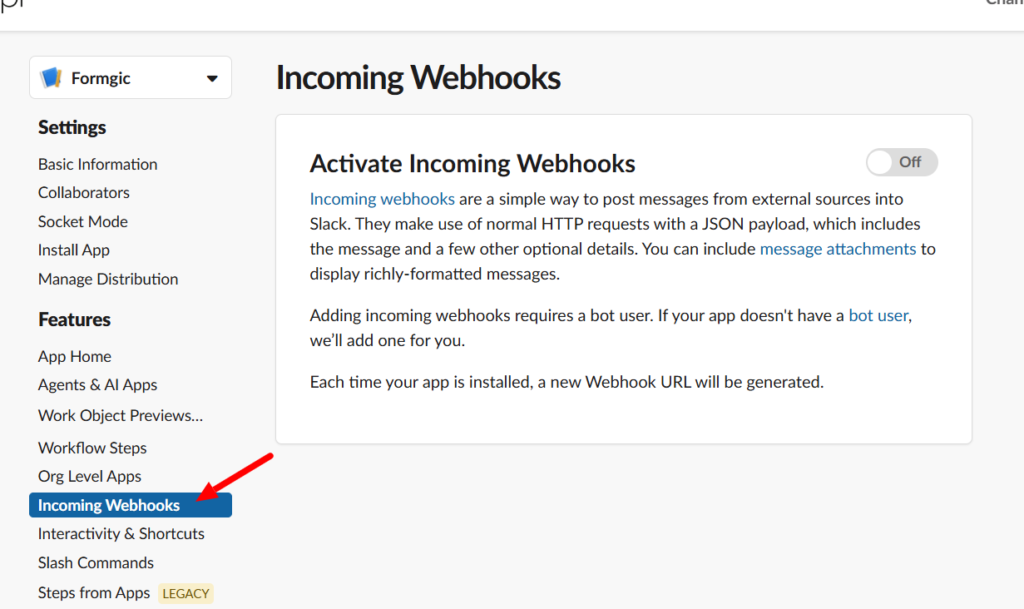
- Enable Activate Incoming Webhooks.
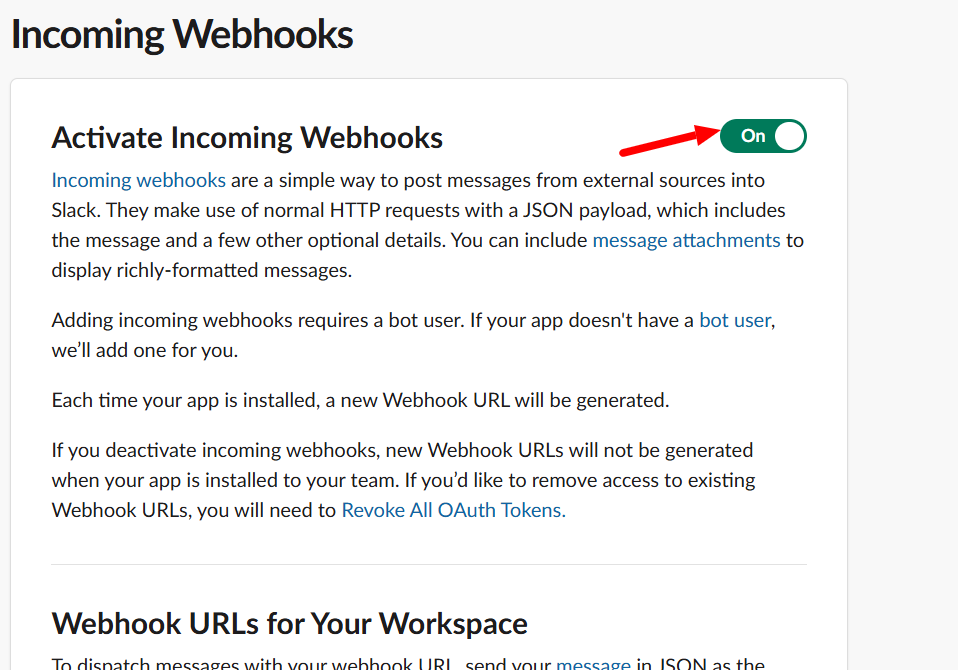
- Click Add New Webhook to Workspace.
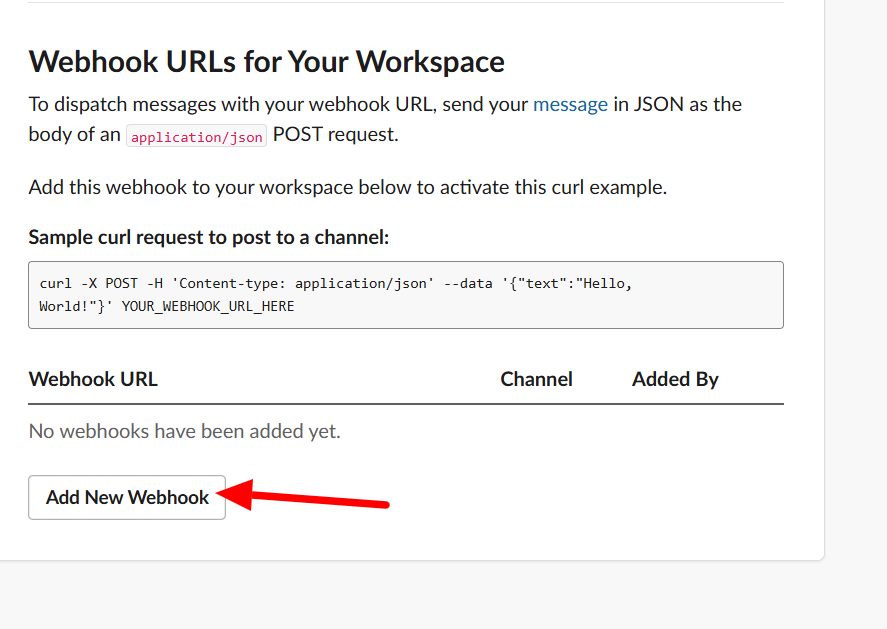
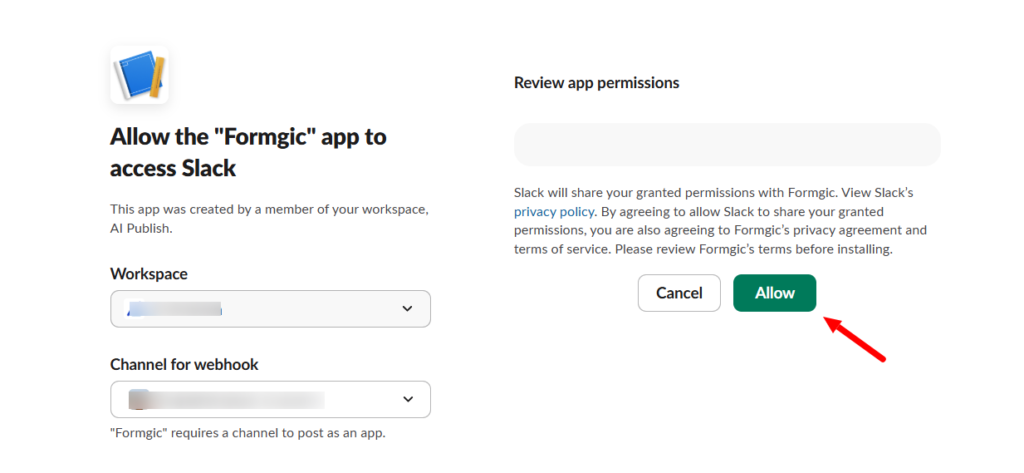
- Select the Slack channel where you want Formgic to send notifications and click Allow.
- Copy the generated Incoming Webhook URL.
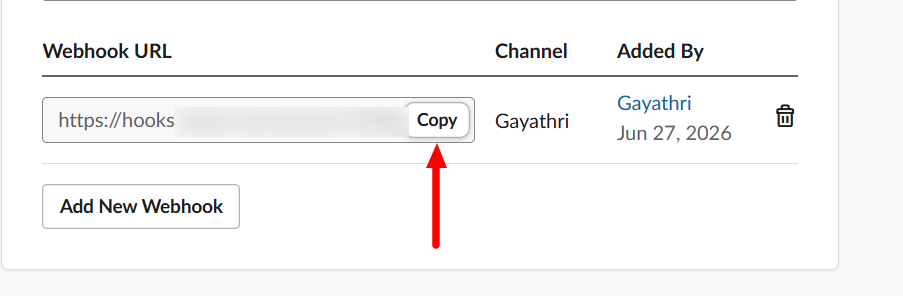
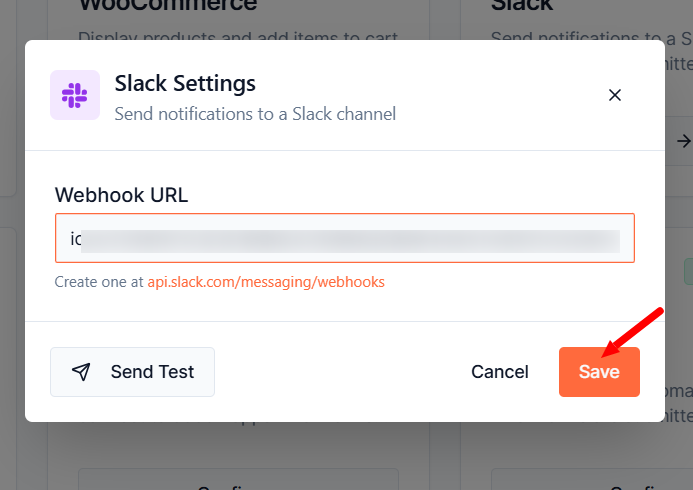
- Paste the URL into the Webhook URL field in the Formgic Slack integration and click Save.
Note: Keep your webhook URL secure. Anyone with access to this URL can send messages to the associated Slack channel.
Send Test
Click Send Test to verify that the webhook is configured correctly and notifications can be delivered to your Slack channel.
Using the Slack Block
After configuring the global integration, add a Slack block to your flow to send notifications.
Configuration Fields
Webhook URL (Optional)
Specify a different Slack webhook URL for this block. When left empty, the Slack block uses the globally configured webhook. Use this option if you want notifications from this block to be sent to a different Slack channel.