The Discord integration allows Formgic to send form submission notifications directly to a Discord channel using a Webhook URL
How to Get a Discord Webhook URL
Step 1: Create or Join a Discord Server
If you don’t already have a server:
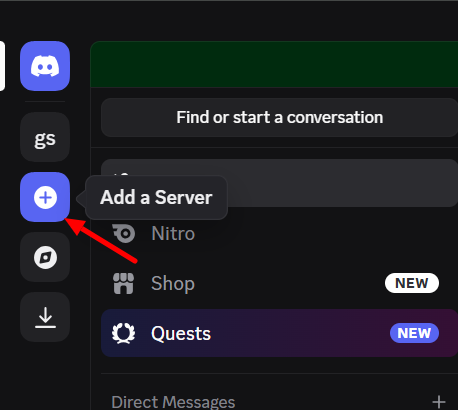
- Click the + (Add a Server) icon on the left sidebar.
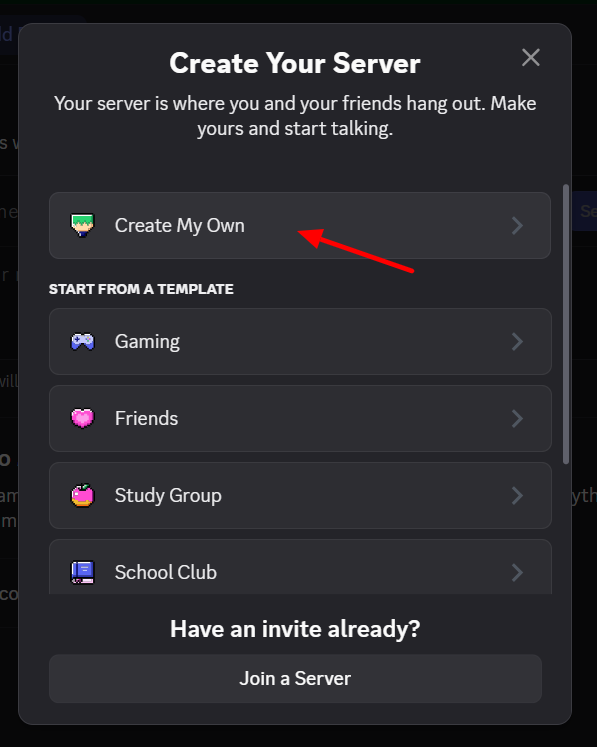
- Click Create My Own.
- Enter a server name (for example, Formgic Test).
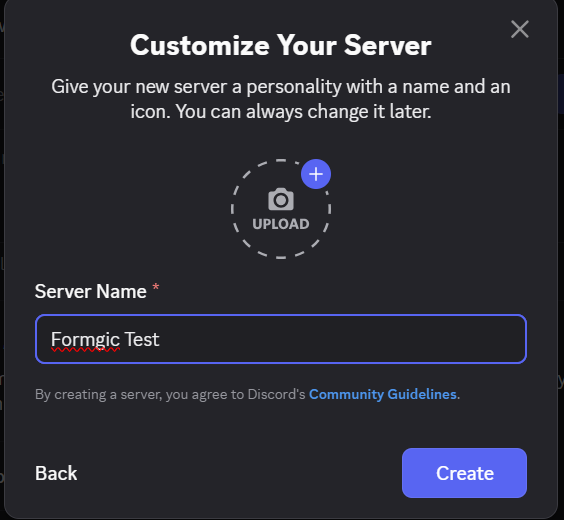
- Click Create.
Step 2: Create a Webhook
Once you’re inside your server:
- Click the server name at the top of the channel list.
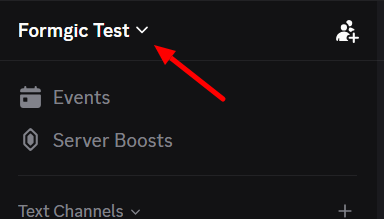
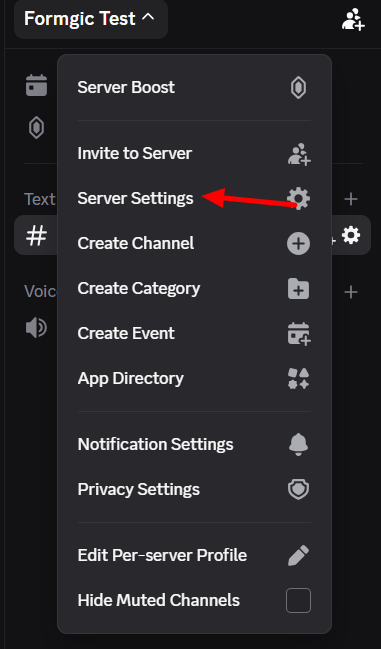
- Select Server Settings.
- Click Integrations.
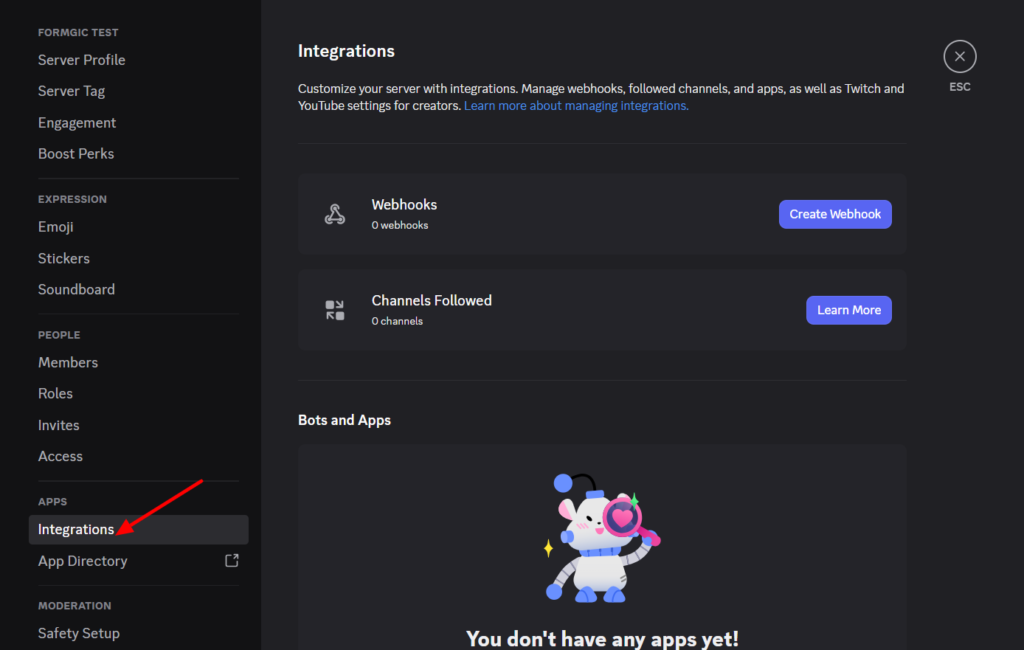
- Click Webhooks.
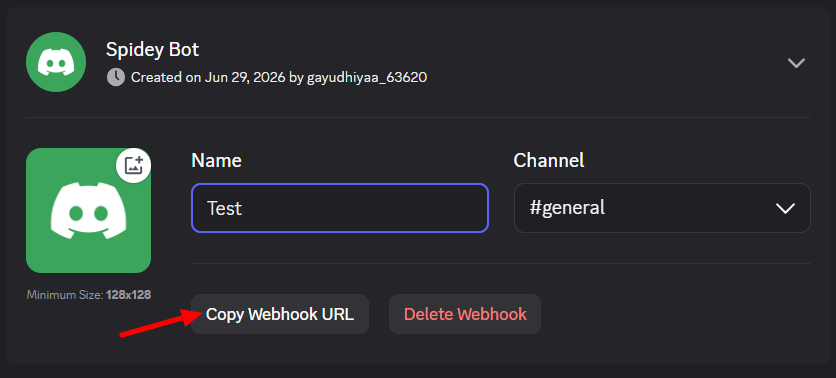
- Click Create Webhook.
- Choose the channel where notifications should be sent.
- Click Copy Webhook URL.
8. Paste Webhook URL in the Formgic and click Save button
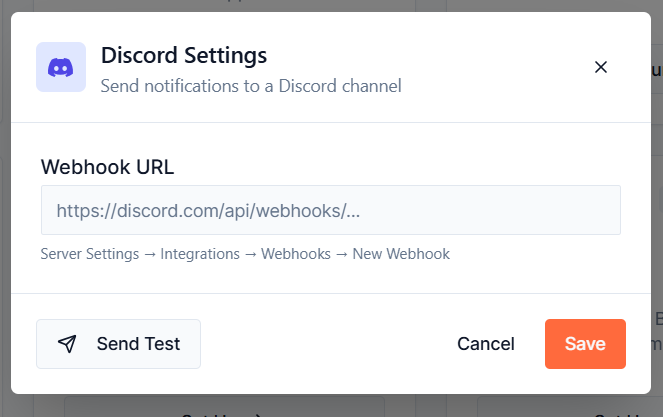
Send Test
Click Send Test to verify that the webhook is configured correctly and notifications can be delivered to your Discord channel.
Using the Discord Block
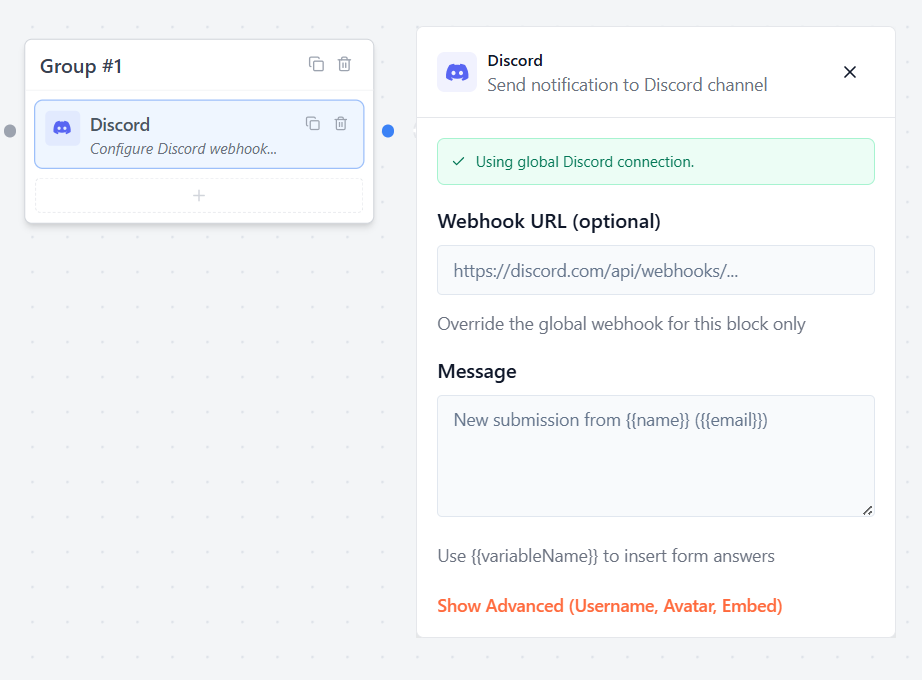
The Discord Block sends form submission details to a Discord channel when a user reaches this block in the flow.
If you have already configured a Global Discord Webhook, Formgic will use it automatically. You can also provide a different webhook URL for this block if you want to send notifications to another Discord channel.
Webhook URL (Optional)
By default, the Discord block uses the Global Discord Connection configured in Integrations → Discord.
If you want this block to send notifications to a different Discord channel, enter a Webhook URL in this field. This will override the global webhook for this block only.
Note: Leave this field empty to use the global Discord webhook.
Message: Enter the message you want to send to Discord when the form reaches this block. You can include form responses using variables in the format:
{{variableName}}
For example:
New form submission!
Name: {{name}}
Email: {{email}}
Phone: {{phone}}
Message: {{message}}
When the form is submitted, Formgic replaces each variable with the user’s response before sending the notification to Discord.
Advanced Options
Click Show Advanced to customize how your notification appears in Discord.
Bot Username: Enter a custom name for the Discord bot that sends the notification.
Avatar URL: Enter the URL of an image to use as the bot’s profile picture in Discord. Leave this field empty to use the default webhook avatar.
Embed Title: Enter a title for the Discord embed message. This title will appear at the top of the embedded notification.
Embed Color (Hex): Specify a color for the left border of the Discord embed using a hexadecimal color code. Leave this field empty to use Discord’s default embed color.